
Age of Wonders 4 Menu Lag: Fix Low FPS and GPU Issues
Fix Age of Wonders 4 menu lag with GPU selection tips, a cold boot, and sync troubleshooting. Get your menus responding before starting your next campaign.
Jump to
How to Fix Age of Wonders 4’s Slow Menus
Age of Wonders 4 menu lag can make even starting a campaign frustrating, with the opening menu crawling at 5–10 FPS. Check which GPU the game is using before spending time adjusting every graphics setting.
Severe menu slowdown has occurred on a Ryzen 5 7600X system with a Radeon RX 6750 XT and 64 GB of RAM. On that system, changing settings and updating drivers did not resolve the problem; switching away from integrated graphics did.
The game now includes a GPU selection option. If your PC has both integrated graphics and a dedicated card, use that option to select the dedicated GPU, then return to the same menu to compare responsiveness.
Older workarounds involved disabling the CPU’s integrated GPU entirely. Start with the game’s GPU selector instead: it lets you choose the graphics hardware without making that system-wide change.
The integrated-graphics workaround dates back to May 2023. It also resolved the problem on a Ryzen 9800X3D system in August 2025. The game now includes the GPU selection feature. Use that newer option when following troubleshooting instructions originally written around the game’s launch.
Focus on the selected GPU and whether changing it improves the menu’s frame rate.
Official page: Age of Wonders 4 (paradoxinteractive.com)
Try a Cold Boot and Test Sync Separately
If the correct GPU is already selected, try a cold boot. Fully shut down the PC, then turn it back on and launch the game again. This resolved a case where performance had suddenly deteriorated after previously running normally.
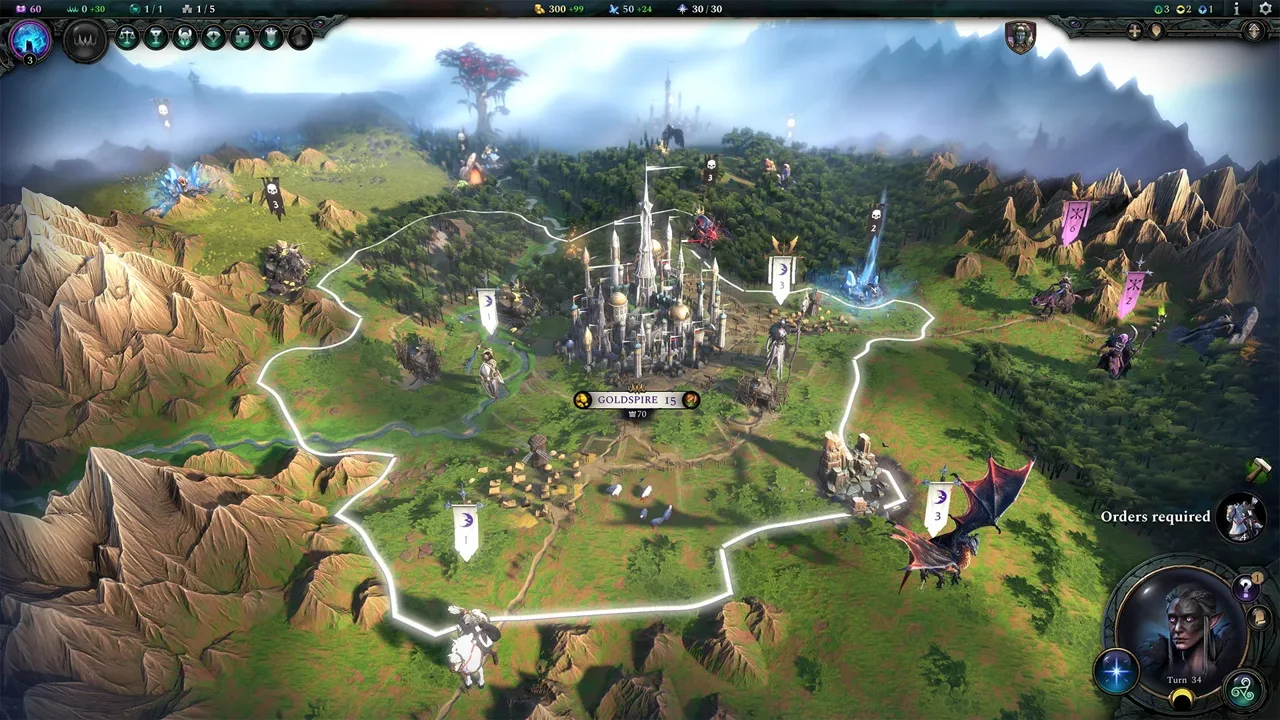 Image: www.paradoxinteractive.com
Test the menu before making another change. Keeping each attempt separate makes it easier to tell which adjustment helped.
Another troubleshooting option is the sync setting. A setting labeled “Half” helped resolve severe performance trouble in an older build. If your version offers that choice, test it and compare menu responsiveness with your previous setting.
Keep these attempts focused:
- Select the dedicated GPU if the game is using integrated graphics.
- Try a cold boot if performance suddenly worsened.
- Test the “Half” sync option if it is available.
- Compare the same menu after each change.
These fixes address different situations, so work through them individually rather than changing everything at once.
Compare Your Hardware With the PC Requirements
The PC requirements target 1080p at 30 FPS for minimum hardware and 1080p at 60 FPS for recommended hardware. Those targets provide useful context when judging performance, though they do not guarantee a particular menu frame rate.
 Image: www.paradoxinteractive.com
| Component | Minimum | Recommended |
|---|---|---|
| Processor | Intel Core i5-2500K or AMD Ryzen 5 1600X | Intel Core i7-9700K or AMD Ryzen 5 5600X |
| Memory | 8 GB RAM | 16 GB RAM |
| Graphics examples | Nvidia GeForce GTX 670 (2GB) or AMD Radeon HD 7870 (2GB) | Nvidia GeForce GTX 1070 Ti (8GB) or AMD Radeon RX 5700 XT (8GB) |
| DirectX | Version 12 | Version 12 |
| Performance target | 1080p, 30 FPS | 1080p, 60 FPS |
Both configurations require a 64-bit processor and operating system. The minimum operating system is Windows 10 Home 64 Bit, version 21H1; the recommended options are Windows 10 Home 64 Bit or Windows 11, with the latest version specified for Windows 11. Storage requirements are 35 GB of available space at minimum and more than 35 GB for the recommended configuration.
The minimum graphics options also include Intel Arc A380 (6GB), Intel Iris Xe G7 (Tiger Lake), and AMD Radeon Vega 8. Integrated graphics therefore appear among the supported minimum configurations. Keep that distinction in mind when selecting a graphics device: the slowdown resolved by switching GPUs occurred on a PC that also had a dedicated Radeon card. It does not mean every supported integrated GPU needs to be disabled.
If your hardware comfortably exceeds these requirements but the menu still runs at single-digit frame rates, prioritize checking GPU selection before considering a hardware upgrade. The 64 GB system described above recovered through a graphics-device change, making additional RAM an unsupported purchase for that particular symptom.
Continue with
 Age of Wonders 4 Arcalot Cannot Excavate: What to DoAge of Wonders 4 arcalot cannot excavate? Check your Excavation skill, spot diggable earth, and plan a route around blocked terrain without wasting turns.
More in Issues
Age of Wonders 4 Crash Error Graphic Driver: Fix Guide
Fix the Age of Wonders 4 crash error graphic driver message with GPU selection, a 60 FPS cap, driver reinstall tips, and guidance on outdated beta fixes.

Age of Wonders 4 Desync: Tips for Smoother Multiplayer
Troubleshoot Age of Wonders 4 desync with practical tips for PC and PS5 multiplayer, fewer alt-tabs, and asynchronous turns that keep your campaign moving.
Continue exploring
Age of Wonders 4 Crossplay: PC, PS5, and Xbox Guide
Age of Wonders 4 crossplay connects PC, PS5, and Xbox Series X|S players. Learn how to enable it, plan co-op sessions, and handle DLC and mod restrictions.
Age of Wonders 4 Multiplayer: Turns, Co-Op, and Mods
Explore Age of Wonders 4 multiplayer, from co-op and PvP to turn modes, mod restrictions, and ways to plan a campaign that fits your group's schedule.
Join the community
Official channels for news, updates and player help: